Email headers reveal the path, authentication, and filtering decisions applied to a message. Reading them correctly helps you pinpoint why emails land in junk, get delayed, or fail authentication. This guide explains where to find headers, how to interpret key fields, and a practical troubleshooting workflow.
What an email header contains
- Routing: A chain of
Received:lines showing each server hop with timestamps. - Authentication:
Authentication-Results:for SPF, DKIM, DMARC (and oftenARC-*for forwarding). - Identity:
From:,Return-Path:,Reply-To:,Message-ID:,Sender:. - Filtering: Provider-specific spam verdicts (e.g.,
X-Spam-Status:,ARC-Seal:,X-MS-Exchange-*,Received-SPF:). - List/meta:
List-Unsubscribe:, MIME details,Content-Type:, and user agent.
Goal: Confirm whether authentication aligned, identify which server flagged spam, and correlate timing or content changes with deliverability outcomes.
How to view full headers in common email clients
Gmail (web)
- Open the message. Click the three dots (More) near the top right.
- Choose “Show original”. A new tab opens with full headers and Gmail’s SPF/DKIM/DMARC summary.
- Copy headers. Click “Copy to clipboard” for raw headers.
 Gmail: Use “Show original” to access full headers and authentication summary.
Outlook (desktop)
- Open the message. Go to File → Properties.
- Find Internet headers. Copy the contents of the “Internet headers” box.
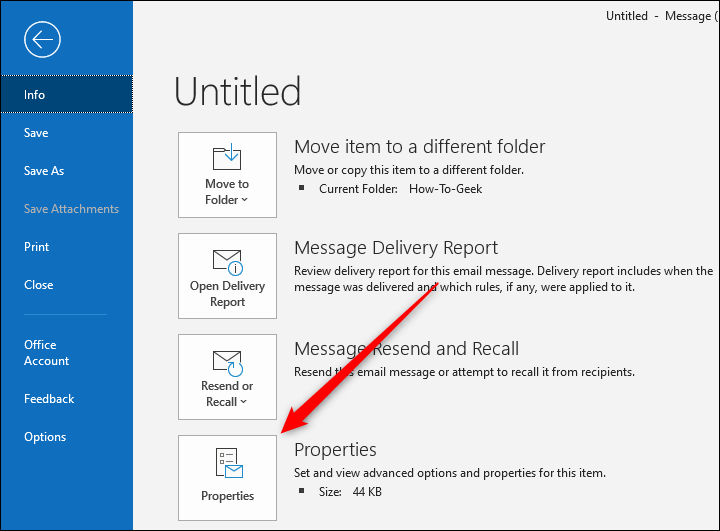 Outlook: Internet headers are in File → Properties.
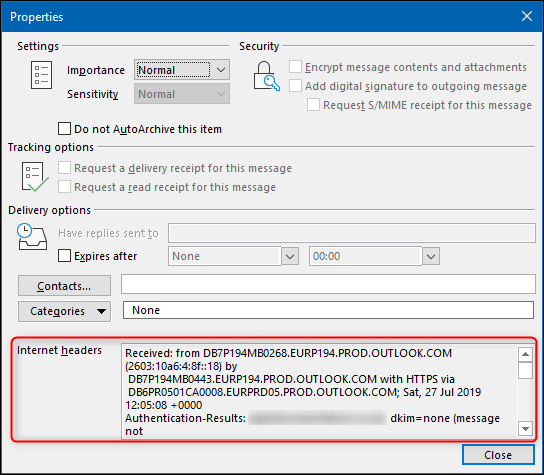 Outlook: Internet headers are in File → Headers.
Apple Mail (macOS)
- Open the message. Choose View → Message → All Headers or View → Message → Raw Source.
- Copy raw source. Raw source includes full headers and MIME body.
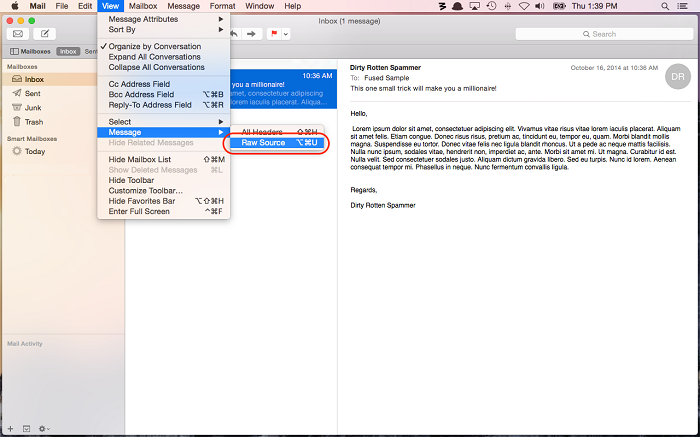 Apple Mail: View all headers or raw source for complete details.
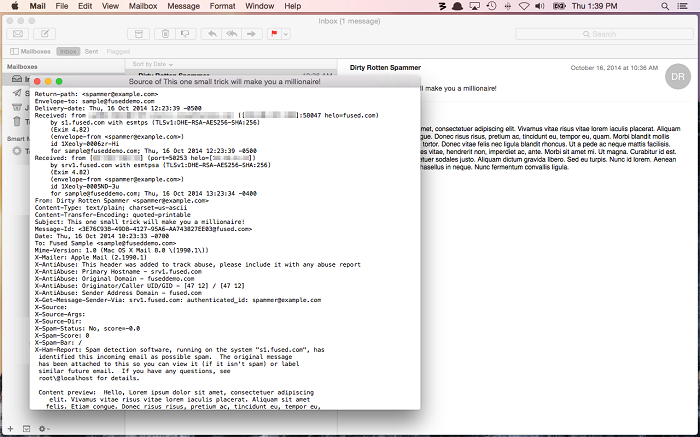 Apple Mail: View all headers or raw source for complete details.
Thunderbird
- Open the message. Press
Ctrl+U(Windows/Linux) orCmd+U(macOS). - Select the message and go to View > Message Source.
- Alternatively, highlight the email in your inbox, then go to Menu > View > Message Source.
- To view an email’s headers, select it and go to Menu > View > Headers > All.
- Headers appear. A new window shows full raw headers and body.
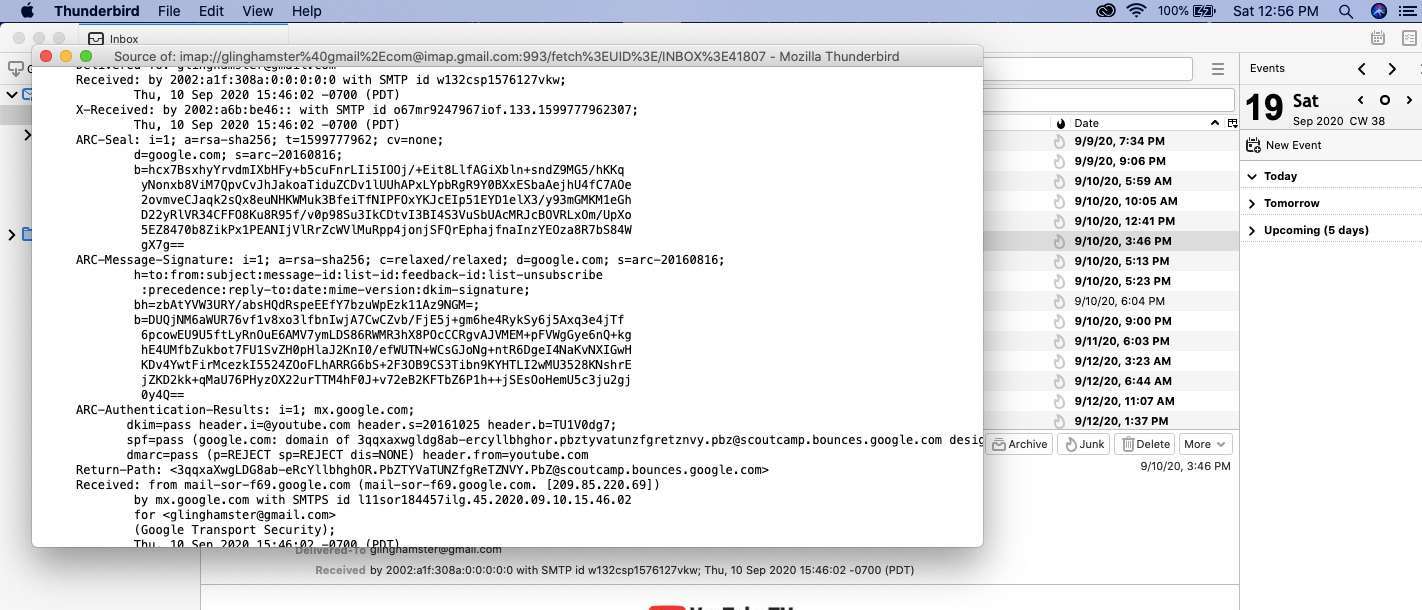 Thunderbird: View source shows raw headers quickly.
Key header fields and how to interpret them
Authentication-Results
- SPF: Looks at the connecting IP’s authorization for the envelope domain. Common results:
pass,fail,softfail,neutral. - DKIM: Verifies the digital signature; results include
pass,fail,none, and alignment status. - DMARC: Requires alignment with SPF or DKIM; results include
passorfail, often withpolicy=none|quarantine|reject.
ARC (Authenticated Received Chain)
- ARC-Seal / ARC-Message-Signature: Preserve authentication across forwarders; useful when DMARC fails post-forward.
- If forwarding: ARC can explain why a previously authenticated message is still accepted.
Received
- Hop chain: Each
Received:line shows a server hop and timestamp; read bottom-up (first hop) to top (final hop). - Latency: Large gaps indicate delays; mismatched timezones or clocks can complicate analysis.
- IP and HELO: Confirms the sending IP and hostname; mismatches may reduce trust.
Return-Path and From
- Return-Path (envelope-from): Used for SPF; may differ from
From:. - Alignment: DMARC expects organizational-domain alignment between identity and authentication.
- Reply-To: Should be a monitored mailbox; “no-reply” may harm engagement.
Provider spam verdicts
- Gmail:
Authentication-Resultswithspf=,dkim=,dmarc=; sometimesX-headers. - Microsoft:
Authentication-Results,Received-SPF, variousX-MS-Exchange-*,SpamDiagnosticOutput. - Gateways:
X-Spam-Status,X-Spam-Flag,X-Spam-Scorefrom SpamAssassin-like systems.
Message-ID and List-Unsubscribe
- Message-ID: Unique identifier; malformed or missing can look suspicious.
- List-Unsubscribe: Improves trust; may enable one-click unsubscribe parsing by inboxes.
Sample header and interpretation
Delivered-To: user@example.com
Return-Path: <bounces@mailer.yourdomain.com>
Received: from mailer.yourdomain.com (mailer.yourdomain.com. [203.0.113.25])
        by mx.google.com with ESMTPS id abc123
        for <user@example.com>
        (version=TLS1_3 cipher=TLS_AES_256_GCM_SHA384) Sat, 10 Dec 2025 10:15:32 -0800 (PST)
Received-SPF: pass (google.com: domain of bounces@mailer.yourdomain.com designates 203.0.113.25 as permitted sender) client-ip=203.0.113.25;
Authentication-Results: mx.google.com;
        spf=pass (google.com: domain of bounces@mailer.yourdomain.com designates 203.0.113.25 as permitted sender) smtp.mailfrom=bounces@mailer.yourdomain.com;
        dkim=pass header.d=yourdomain.com header.s=mail header.b=ABC123;
        dmarc=pass (p=quarantine dis=none) header.from=yourdomain.com
ARC-Seal: i=1; a=rsa-sha256; d=forwarder.example; s=arc; t=1733831732; cv=pass;
From: Systron <news@yourdomain.com>
Reply-To: support@yourdomain.com
Subject: December product update
Message-ID: <20251210-mailer-xyz@yourdomain.com>
List-Unsubscribe: <mailto:unsubscribe@yourdomain.com>, <https://yourdomain.com/u/12345>
- SPF pass: The sending IP is authorized for the envelope domain.
- DKIM pass: Signature from
yourdomain.comvalidated. - DMARC pass: From domain aligns with either SPF or DKIM (here, DKIM aligns).
- ARC present: Indicates forwarding preserved authentication.
- Verdict: Healthy authentication; if still junked, investigate content, reputation, or engagement factors.
Common failure patterns and fixes
SPF softfail or too many lookups
- Header clue:
spf=softfailorReceived-SPF: softfail; “exceeds DNS lookups.” - Fix: Consolidate includes; keep under 10 lookups; move to
-allafter validation; ensure the sending IP is covered.
DKIM none or fail
- Header clue:
dkim=none(no signature) ordkim=fail(bad key or altered content). - Fix: Enable signing, correct selector, rotate and publish keys, ensure your MTA/ESP applies DKIM to all messages.
DMARC fail (unaligned domains)
- Header clue:
dmarc=fail,policy=quarantine|reject,header.fromdomain doesn’t align with SPF/DKIM identity. - Fix: Send from your organizational domain, align SPF (envelope-from) or DKIM (d= domain) with
From:domain; adjustp=after validation.
Forwarding breaks DMARC
- Header clue:
spf=failafter forwarding; ARC present withcv=pass. - Fix: Rely on DKIM alignment (less affected by forwarding); ARC can help receivers trust forwarded mail.
Gateway spam flags
- Header clue:
X-Spam-Status: Yes, high score; MicrosoftSpamDiagnosticOutputindicates policy hit. - Fix: Reduce spam triggers (links, wording, images), ensure HTML and text parts are clean, check attachments and reputation.
Decision tree: diagnose with headers
- Start: Open full headers; capture
Authentication-Results,Received, and spam verdicts. - Authentication: If SPF/DKIM/DMARC all pass and align, proceed to content/reputation. If any fail, fix those first.
- Routing: Check
Receivedchain for delays or unexpected hops; confirm HELO and PTR match your domain. - Identity: Ensure
From,Return-Path, and DKIMd=use your organizational domain. - Spam verdicts: Note which system flagged the message; adjust content and sending patterns accordingly.
- Re-test: Send to engaged recipients; confirm improved placement; scale gradually.
Screenshot walkthrough: reading headers step by step
1. Gmail “Show original” summary
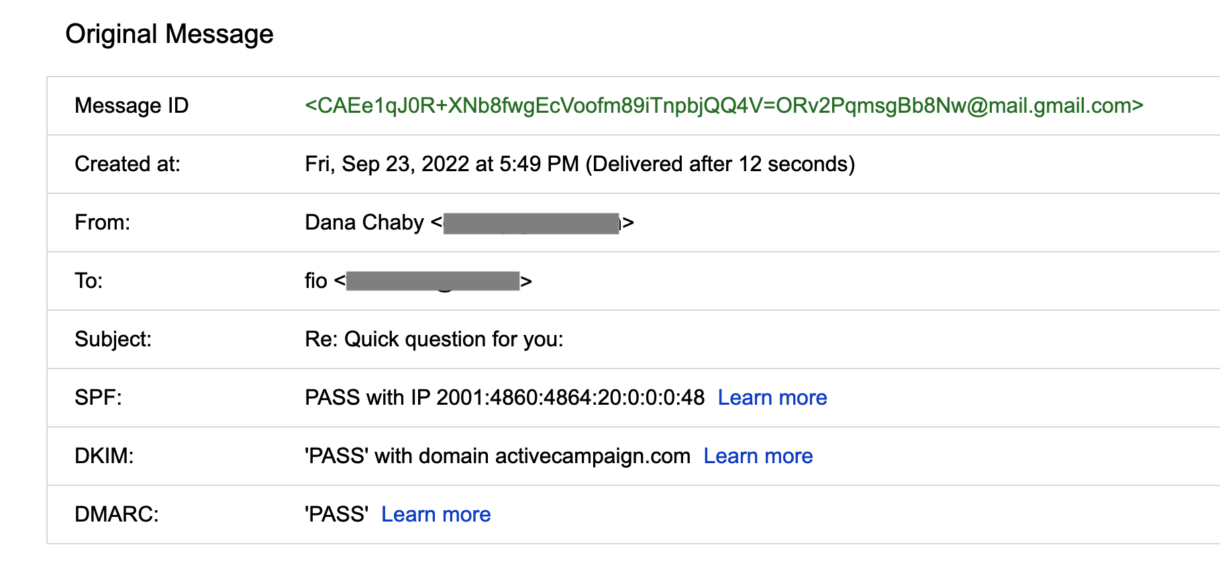 Gmail provides a quick summary of SPF/DKIM/DMARC in “Show original”. Look for “PASS” or “FAIL”.
2. Outlook Internet headers
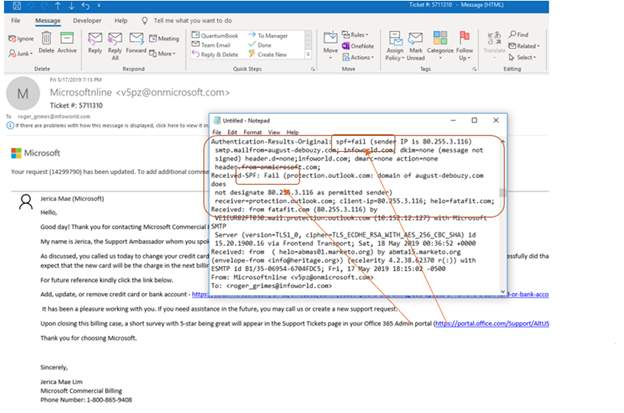 Outlook’s Internet headers pane shows
 Received chain, Authentication-Results, and provider-specific flags.
3. Apple Mail raw source
Apple Mail raw source reveals all headers, including ARC and List-Unsubscribe where present.
Tip: Save the header as a text file and annotate key lines (SPF/DKIM/DMARC, Received hops). It speeds up collaboration with IT or your ESP.
Header red flags and quick remediations
- SPF softfail/neutral: Add/verify sending IPs or includes; keep lookup count < 10.
- DKIM missing: Enable DKIM, correct selector, rotate keys, ensure all streams sign.
- DMARC unaligned: Bring
From:, SPF envelope, and DKIM signing domain under the same organizational domain. - Broken HELO/PTR: Align HELO with FQDN, ensure reverse DNS (PTR) resolves to your sending hostname.
- Gateway spam score high: Remove risky attachments, tidy HTML, reduce image-to-text ratio, and simplify links.
Checklist: what to capture from headers for a deliverability ticket
- Full raw headers: Unmodified, pasted in a code block or text file.
- Provider summary: SPF/DKIM/DMARC verdicts and policy details.
- Received chain: Hops with timestamps; note latency gaps.
- Identity alignment:
From,Return-Path, DKIMd=, Message-ID domain. - Spam flags: Any
X-Spam-*,Received-SPF, MicrosoftSpamDiagnosticOutput, ARC results.
Next steps after fixing header-level issues
- Content cleanup: Minimize spammy language and excessive formatting; include a plain-text part.
- Reputation: Check blocklists, warm new IPs, and stabilize cadence.
- Compliance: Visible one-click unsubscribe, physical address, accurate sender identity.
- Engagement: Target engaged segments first; trim inactive recipients to bolster positive signals.