This guide explains how to configure your Google Workspace email account in iOS Mail on iPhone or iPad.
Important: Ensure IMAP is enabled in Gmail settings. If your organization enforces 2‑Step Verification, you may need to generate an App Password.
Basic iOS Settings
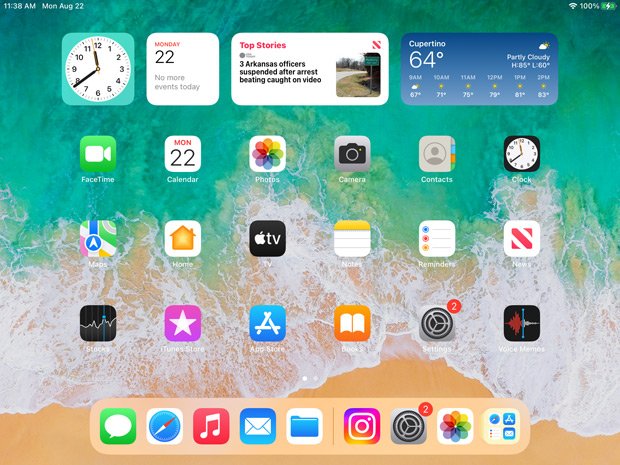
- Choose Settings from the home panel.
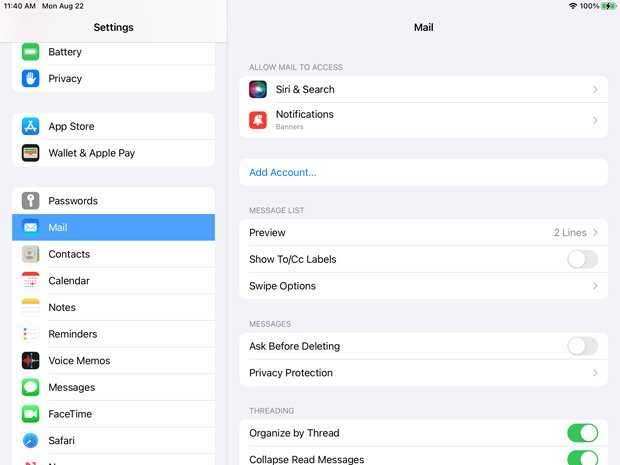
- Under Mail, choose Add Account.
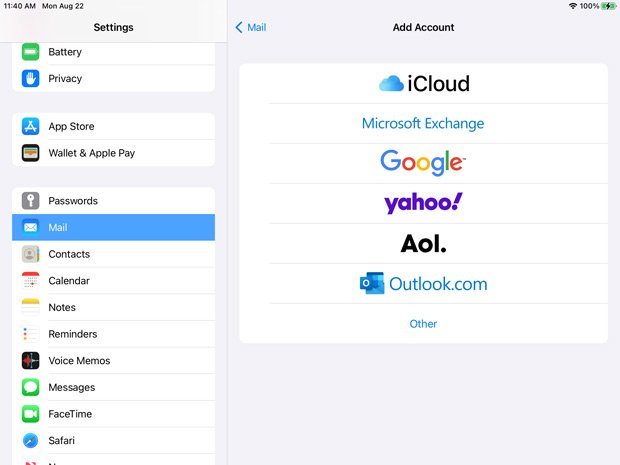
- Choose Google in the list of accounts.
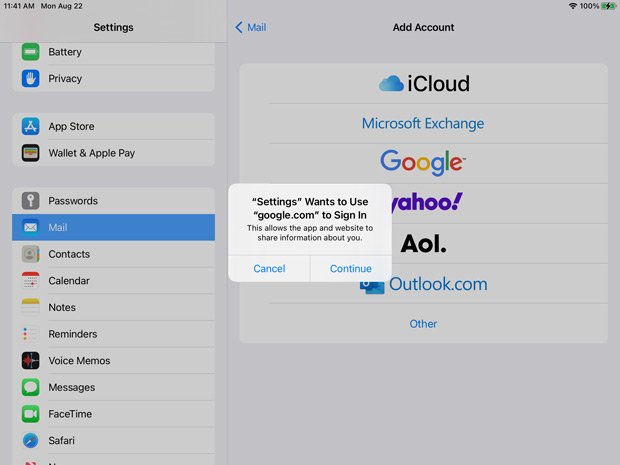
- Choose Continue to allow iOS to access your Google account.
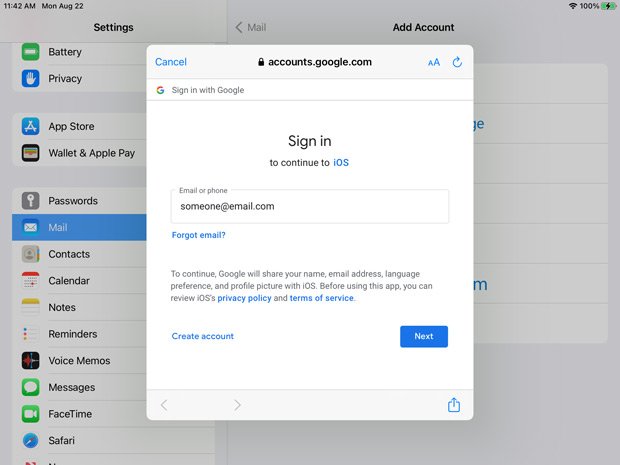
- Enter your Google Workspace email address and tap Next.
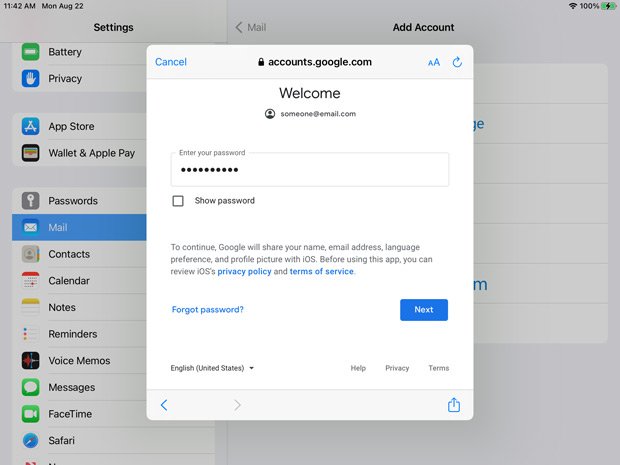
- Enter your email password and tap Next. iOS should automatically configure the rest of the settings.
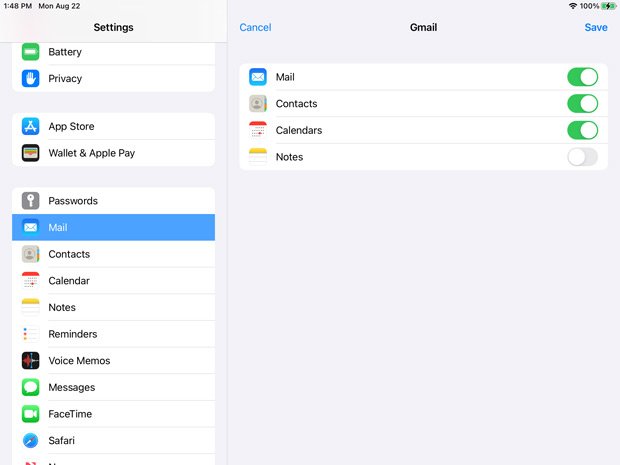
- Choose which Google Workspace services to sync (Mail, Contacts, Calendars, Notes) and tap Save.
iOS Outgoing (SMTP) Server Settings
- Once your settings are saved, go to Mail → Gmail → Account. Choose Advanced.
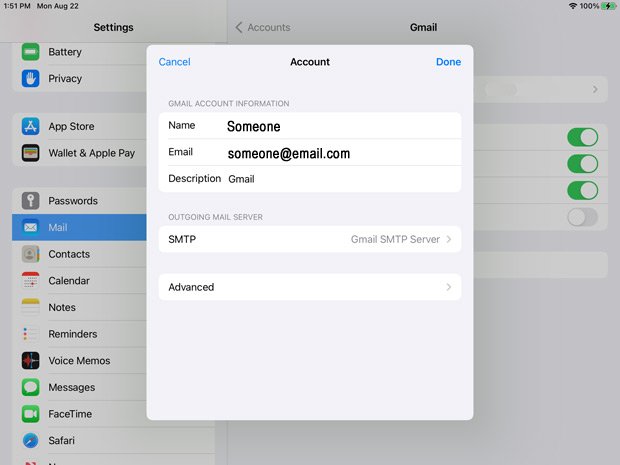
- Most settings will already be filled in. Here you can customize how the server responds when downloading to your iOS device.
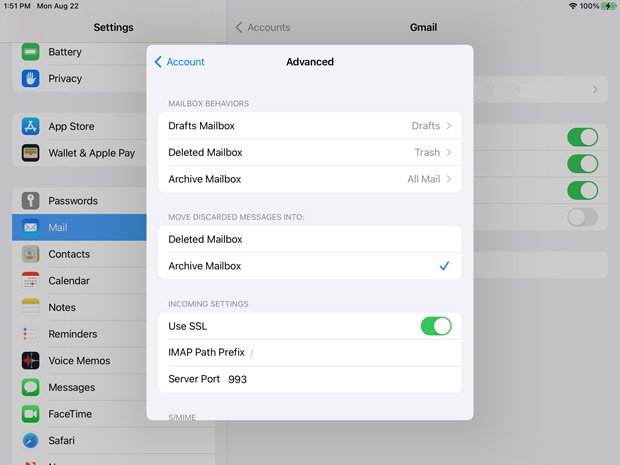
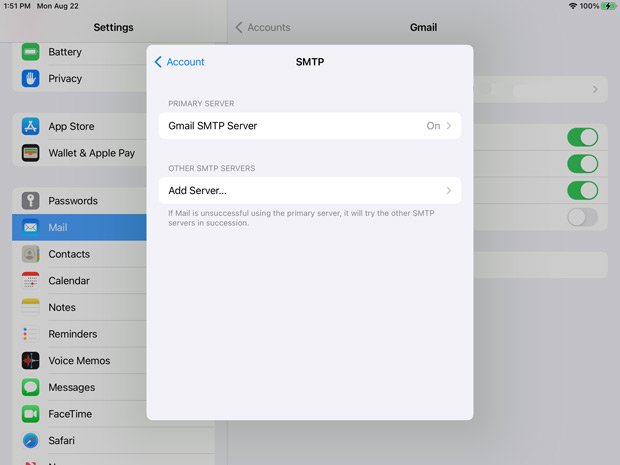
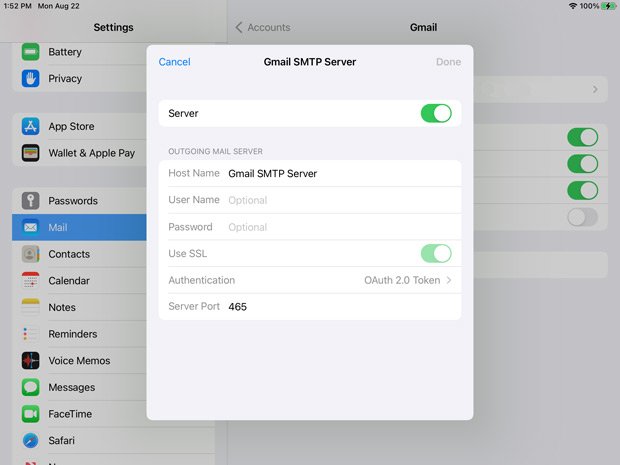
- Go back to your Account screen and choose SMTP. Select Gmail SMTP Server.
- Ensure the Server Port is set to 465. Tap Done.
You should be all set! iOS Mail will now sync your Google Workspace mailbox.