This guide explains how to configure your Google Workspace email account in Apple Mail on macOS using IMAP and SMTP settings.
Important: Ensure IMAP is enabled in Gmail settings. If your organization enforces 2‑Step Verification, you may need to generate an App Password.
Basic Apple Mail Settings
- Add your Google Workspace email account by selecting Preferences under the Mail menu.
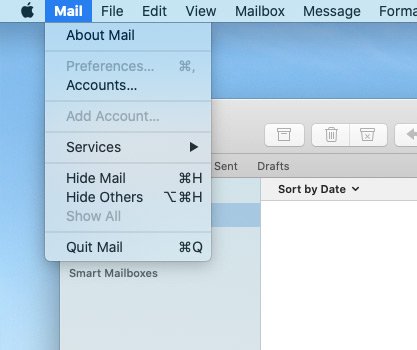
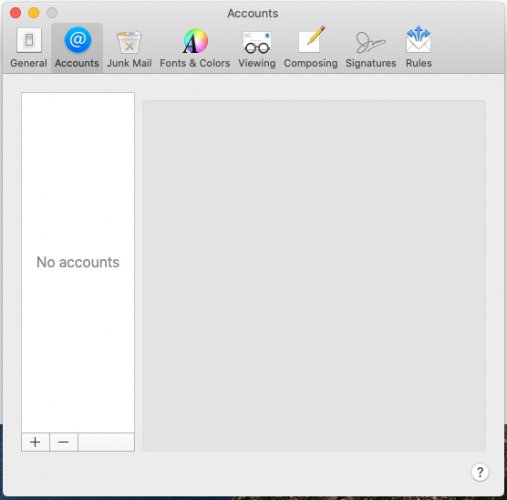
- Click the + button to add an account.
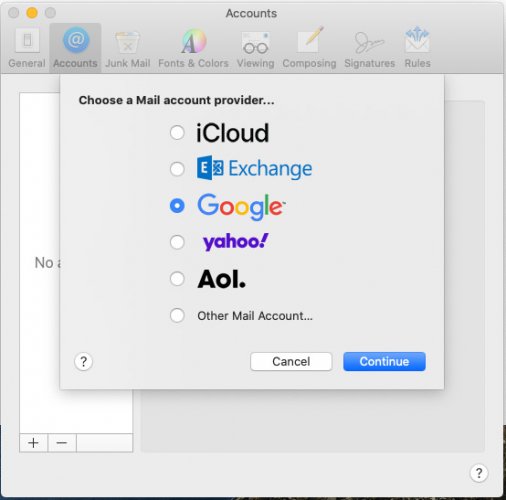
- In the list of providers, choose Google and click Continue.
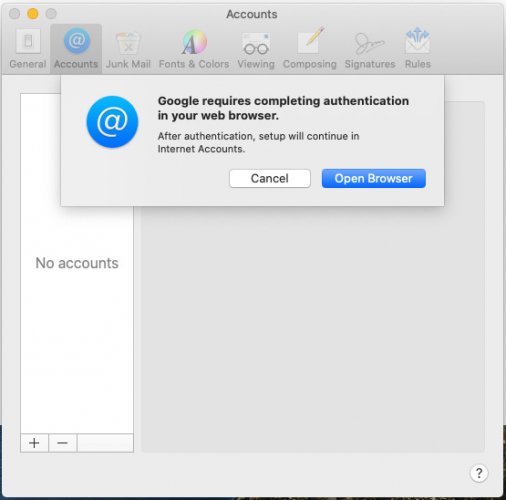
- In the pop-up, click Open Browser.
- Enter your Google Workspace email address and click Next.
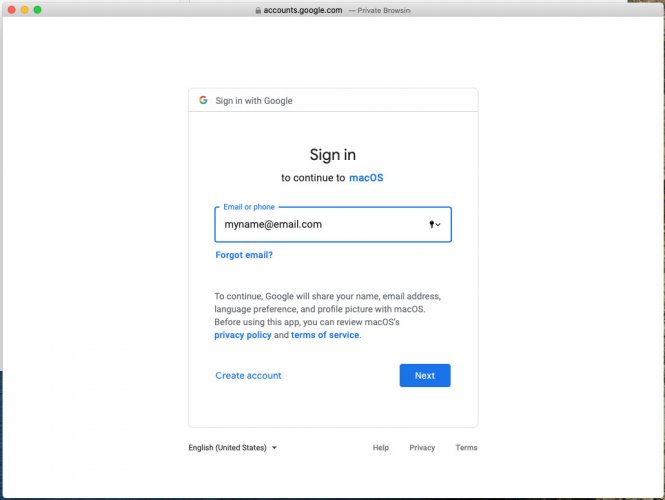
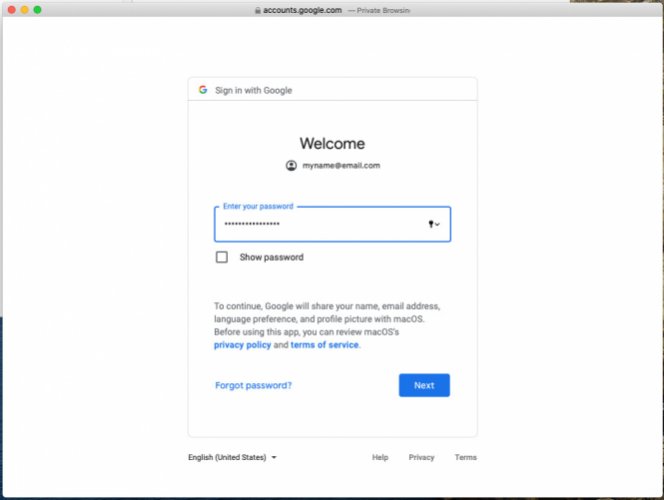
- Enter your email password and click Next.
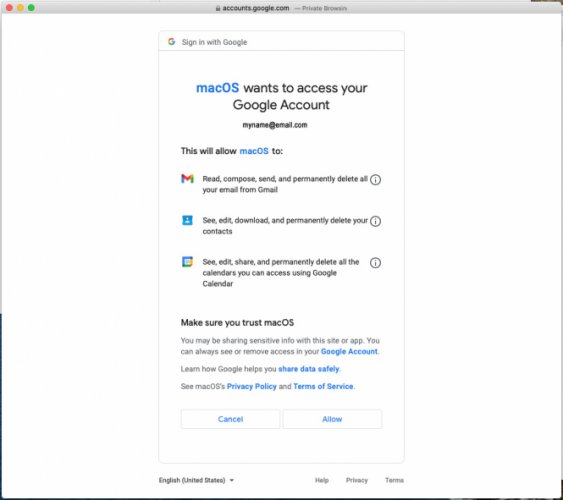
- Allow the Mac to access your Google Workspace account.
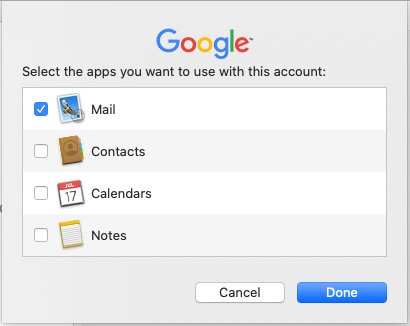
- Choose which services to import (Mail, Contacts, Calendars, Notes) and click Done.
Apple Mail Outgoing (SMTP) Server Settings
- Most settings are added automatically. To make changes, go to Mail → Preferences.
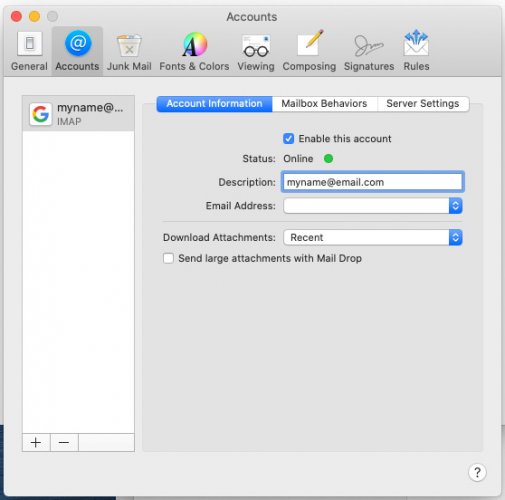
- Click the Server Settings tab.
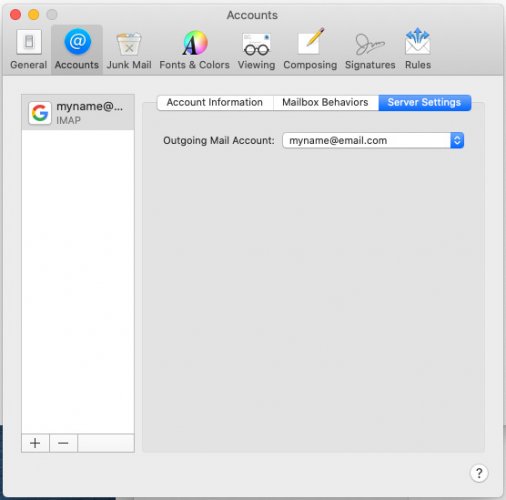
- Choose Edit SMTP Server List from the dropdown.
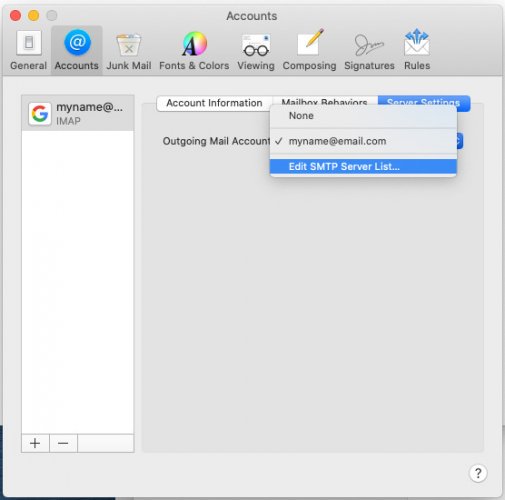
- Review or add SMTP server settings. Ensure:
- Host Name: smtp.gmail.com
- Port: 465
- Connection security: SSL/TLS
- Authentication: Normal password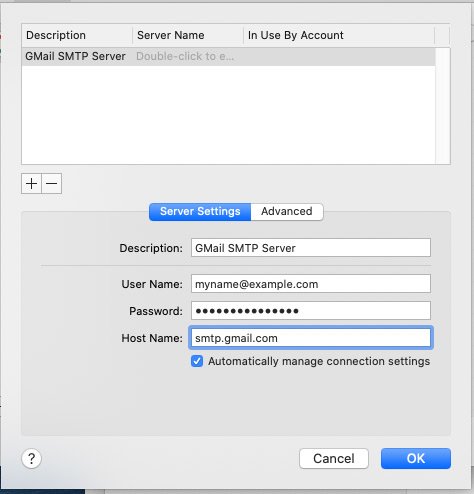
You should be all set! Apple Mail will now sync your Google Workspace mailbox.