This guide explains how to configure your Google Workspace email account in Mozilla Thunderbird using IMAP and SMTP settings.
Important: Ensure IMAP is enabled in Gmail settings. If your organization enforces 2‑Step Verification, you may need to generate an App Password.
Thunderbird Email Account Setup
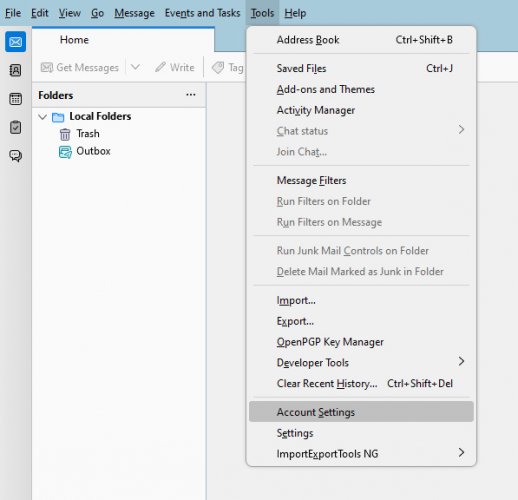
- Add your Google Workspace email account by selecting Account Settings under the Tools menu.
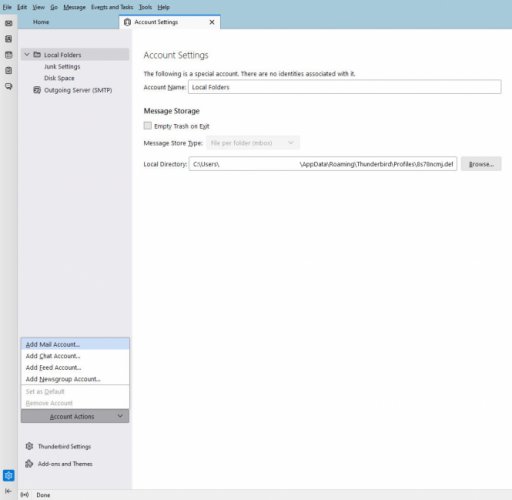
- In the Account Settings box, click Account Actions → Add Mail Account.
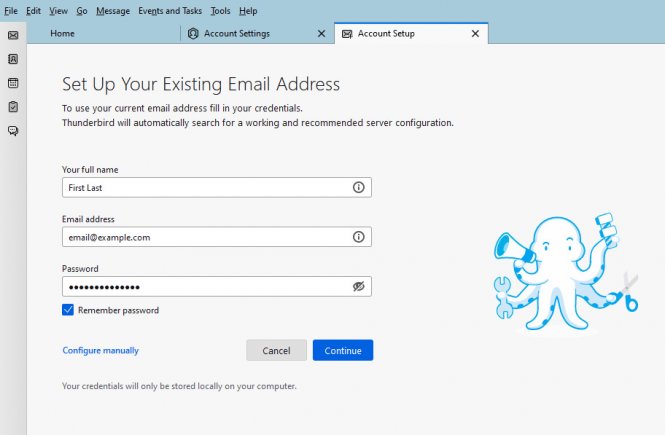
- In the Account Setup box, enter your name, email address, and password. Check Remember password, then click Configure manually.
- Configure manually:
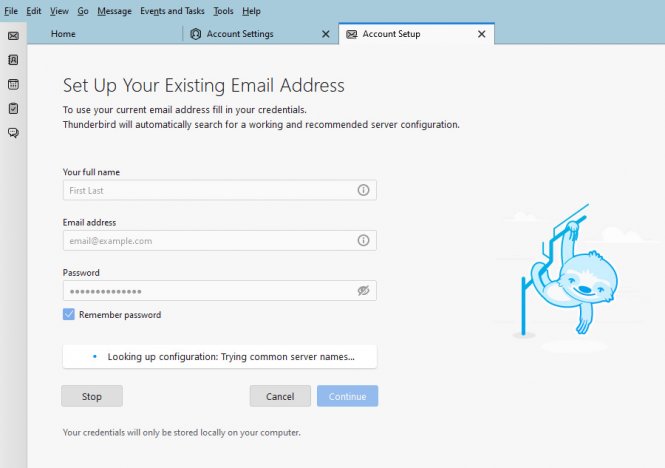
Thunderbird Final Settings
- Enter your Username (your full email address), password, and choose IMAP for the protocol.
- Incoming server: imap.gmail.com, Port 993, SSL/TLS
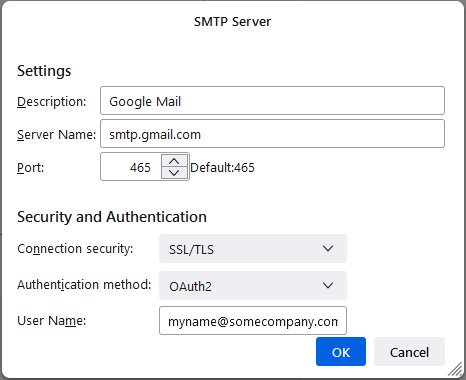
- Outgoing server: smtp.gmail.com, Port 465, SSL/TLS
Authentication: Autodetect for both.
Click Re-test.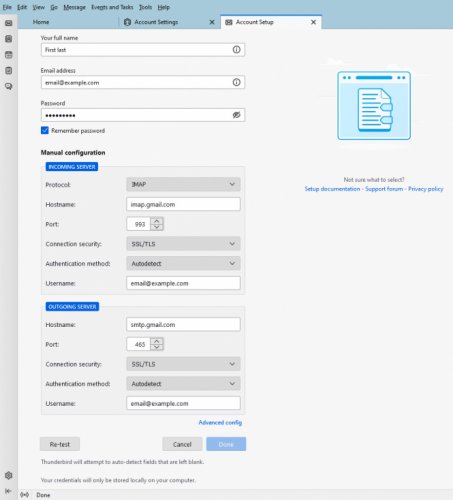
- Thunderbird will test the configuration. Once finished, click Done.
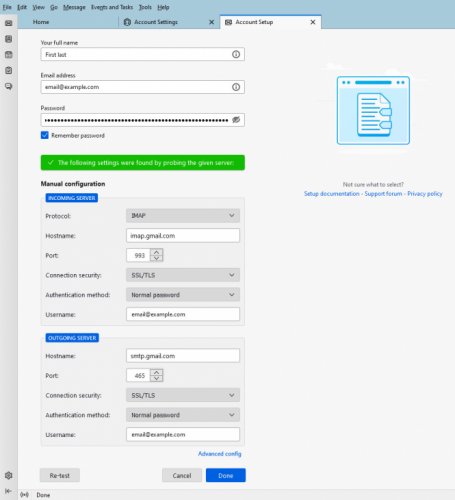
You should be all set!
Editing Thunderbird Settings for an Existing Account
- Access your email account settings via Tools → Account Settings.
- Review the list of settings under your account name.
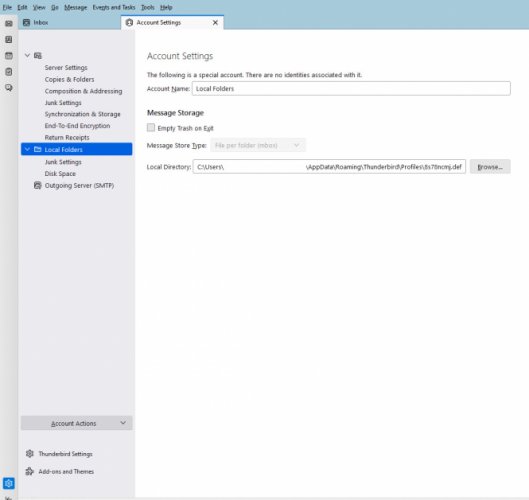
- Click the Server Settings tab to edit the incoming server name.
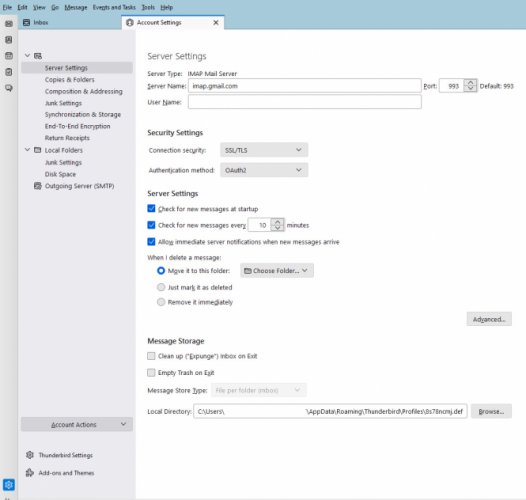
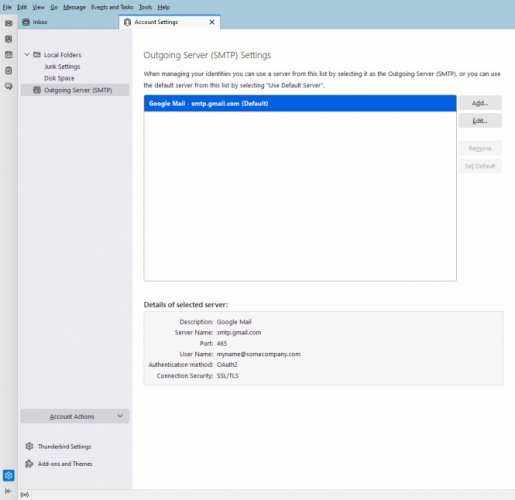
- To change the SMTP server, go to Outgoing Server (SMTP), select the server, then click Edit.
- Under Security and Authentication, set Connection security to SSL/TLS and Authentication method to Normal password. Use your email address as the username.
Once saved, Thunderbird will prompt for your password the next time you connect. Select the option to remember your password so you won’t be asked again.