This guide walks you through connecting your Google Workspace mailbox to Microsoft Outlook on Windows using modern authentication (OAuth) or IMAP/SMTP. Follow the steps carefully and use the troubleshooting section if something doesn’t work as expected.
Important: If your organization enforces 2‑Step Verification, you’ll sign in with Google’s secure window (OAuth). If basic passwords are used, you must enable IMAP in Gmail settings and use the correct IMAP/SMTP servers and ports.
Step-by-Step Setup
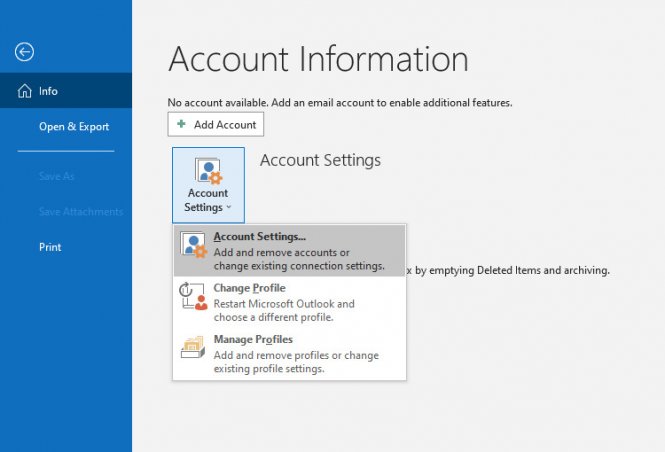
- Open Outlook → File → Info → Account Settings.
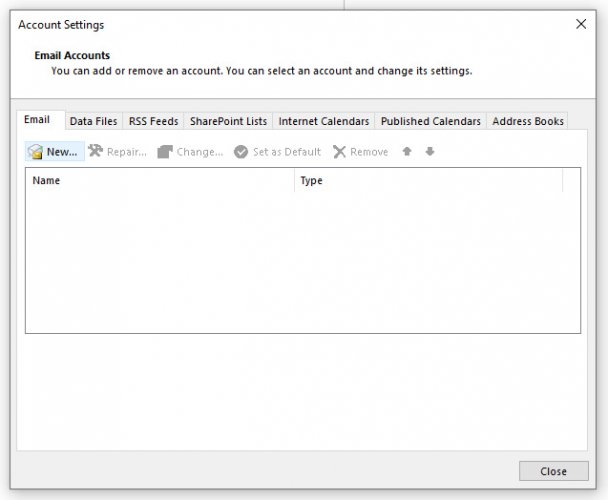
- Click New in the Account Settings box.
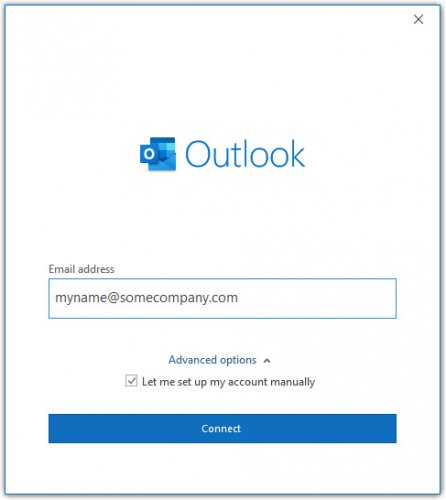
- Enter your email → choose Let me set up my account manually → Connect.
- Select Google as the provider.

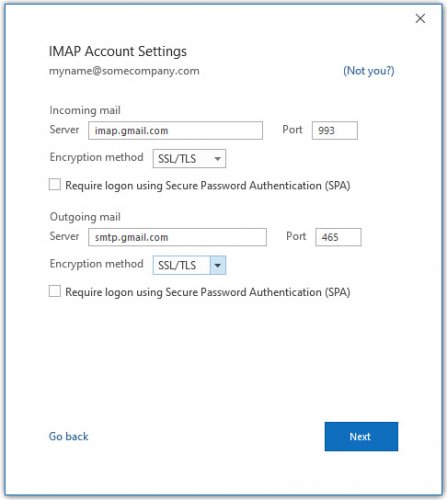
- Enter server settings:
- Incoming (IMAP): imap.gmail.com, Port 993, SSL/TLS
- Outgoing (SMTP): smtp.gmail.com, Port 465, SSL/TLS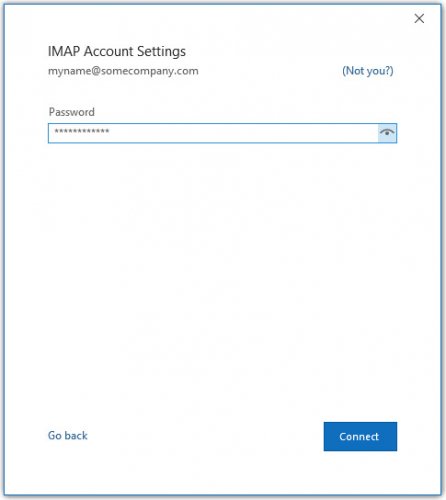
- Enter your Google Workspace password → Connect.
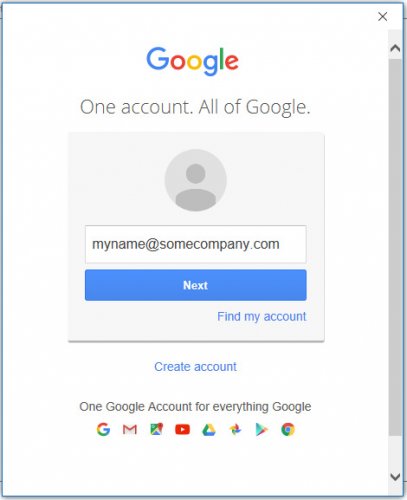
- Sign in via Google OAuth window.
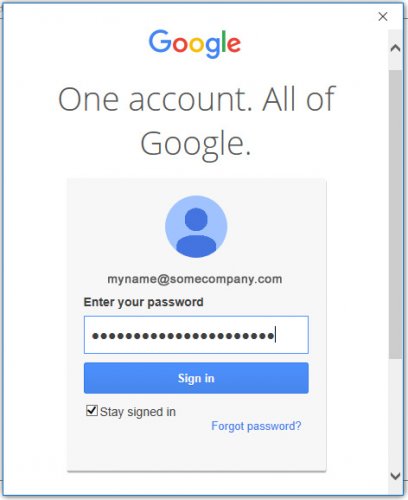
- Finish setup → click Done.

Editing Existing Account Settings
- Access Account Settings again via File → Info.
- Select your Google Workspace account → click Change.
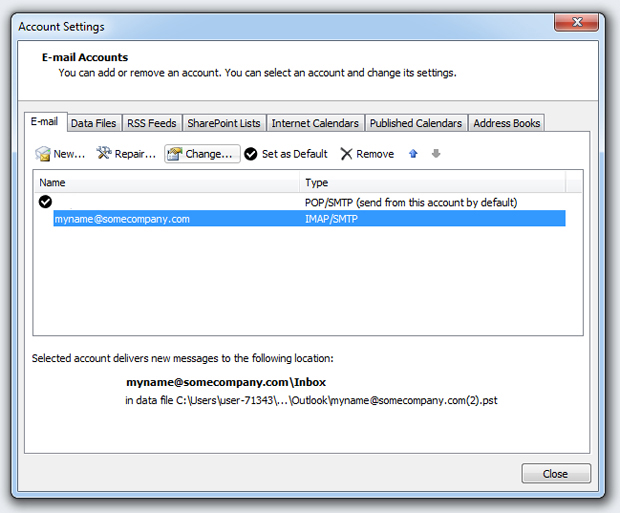
- Edit server names and ports → ensure SSL/TLS encryption → click Next.
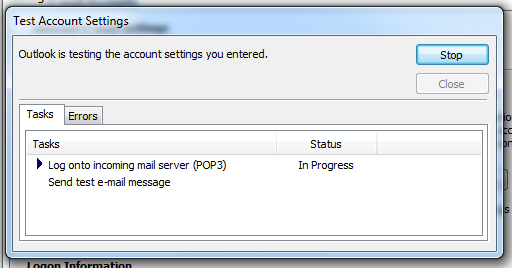
- Outlook will test settings → click Close → Next.
- Setup complete.